In partnership with

HI AND WELCOME TO
AI & ChatGPT Central
Today’s edition teaches you how to turn Nano Banana, Google’s fast image generation model into your personal design engine.
Today we will break down the exact templates you need to create photorealistic portraits, stylized stickers, logos with accurate text, product mockups, minimalist backgrounds and even comic panels.
You’ll learn how to use angles, lighting, style cues and rendering details so your images come out clean, consistent and ready for real projects.
Love you,
👩🏻 Kris & The ChatGPT Central Team

6 Image Prompting Frameworks for Nano Banana ⤵️
Download this guide which can help you master Nano Banana’s image generation with clear templates for realistic images, illustrations, logos, mockups, and more.
Inside the Guide You’ll Learn How To
Create photorealistic scenes using lenses, lighting, and camera angles
Design stickers and stylized illustrations with clean outlines and color palettes
Generate logos with accurate text, font styles, and precise brand elements
Build product mockups, minimalist backgrounds, and comic panels with clear templates
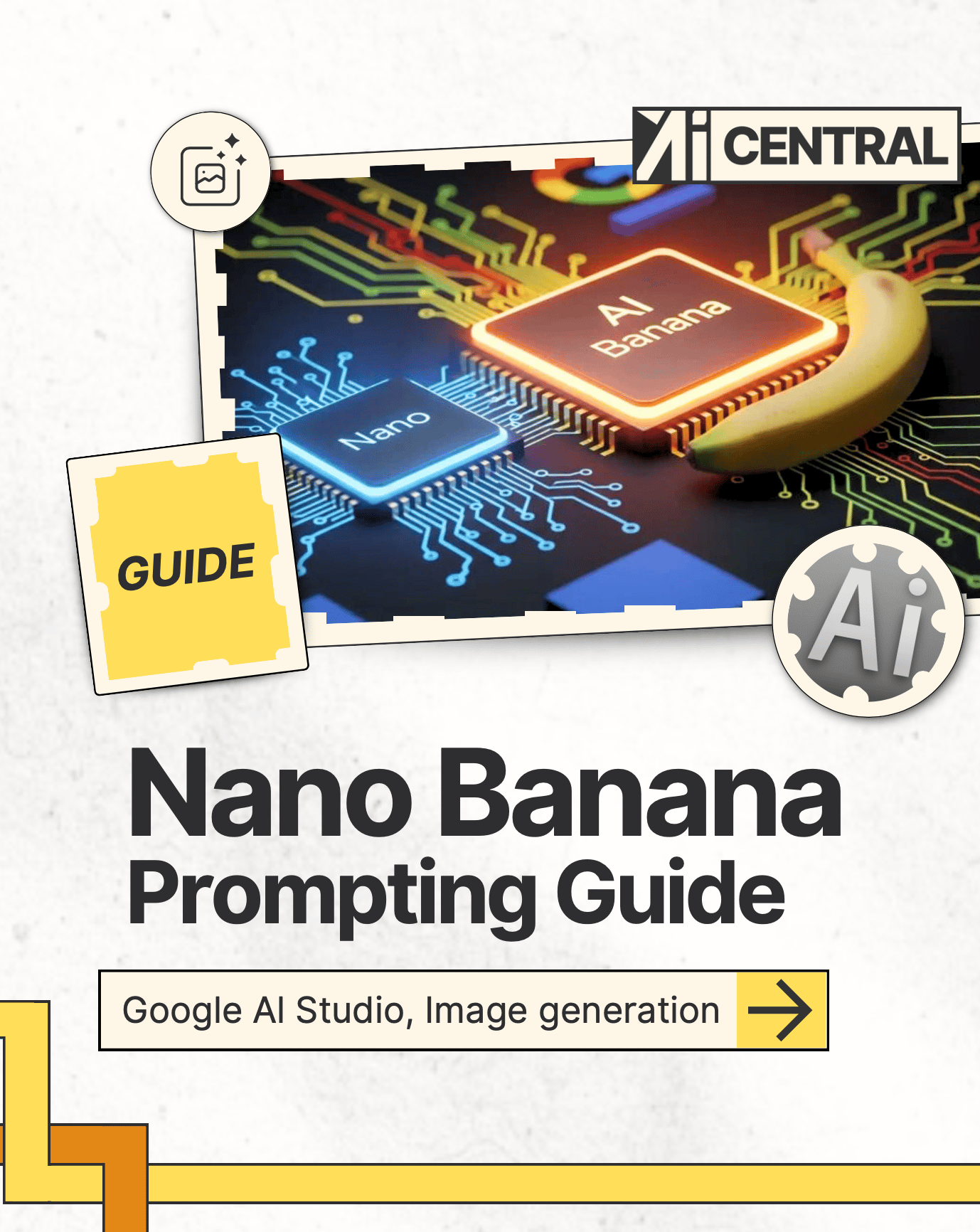
This guide breaks down Nano Banana’s capabilities into six practical prompting systems. You learn how to create photorealistic scenes by specifying shot types, environments, lighting, lens details and key textures. You’ll also get to know how to build stylized illustrations and stickers using explicit style instructions, color palettes and white backgrounds. After that there is demonstration how Nano Banana excels at rendering text accurately when you provide font descriptions and layout cues.
Product mockups teach you how to use studio lighting, camera angles and surface details to generate clean, professional product shots. Minimalist negative-space designs help you create backgrounds for presentations and websites.
Finally, the comic panel template shows how to build sequential art using clear character actions, backgrounds, and mood-based lighting. Each section includes an example prompt and result for immediate use.
Execution Steps
Start by choosing one category: photorealistic, stylized, product or logo.
Copy the matching template and swap out your subject, setting and style.
Add lens, lighting, or composition details to increase realism.
Include colors, line styles, or shading styles for illustrations and stickers.
For logos, state the exact text and describe the font style clearly.
Generate 3 variations, pick the best one, then refine the prompt.
Save your final prompts as reusable templates in your workspace.
Action
Action: Use the “Photorealistic Scene” or “Stylized Sticker” template from the guide today. Generate three variations of the same idea and study how small prompt changes affect the output.

🛠️ Try this new AI tool

If you want meeting recaps that arrive seconds after the call ends, action items written for you, and the ability to chat with your transcript whenever you need clarity, Granola is in a league of its own.
The praise from top operators isn’t hype. It really does feel like stepping into the future.
Try it for a couple meetings and you’ll understand why people say they can’t go back.

📚 Get The New AI Library

November brings our biggest upgrade yet. We added 100+ new, ready to use tutorials across marketing, ops, product, and creator workflows, turning the library into the best platform for execution.
Tutorials now include direct download links for files and prompts, so you can grab assets without extra clicks. You will also see smarter navigation with new categories, a refined filter that stacks by format, use case, audience, and tags, plus saved searches that remember your go to combos. The result is faster discovery, cleaner handoffs, and a library that gets you from idea to shipped work in minutes.
🎤 Share Your Ideas

Drop us a message and let us know the topics you’d like us to explore in future editions. What’s on your mind?
